
Digital stickers are a fun and modern way to decorate planners, social media stories, digital notebooks, and messaging apps. Unlike physical stickers, they are reusable, customizable, and easy to share instantly.
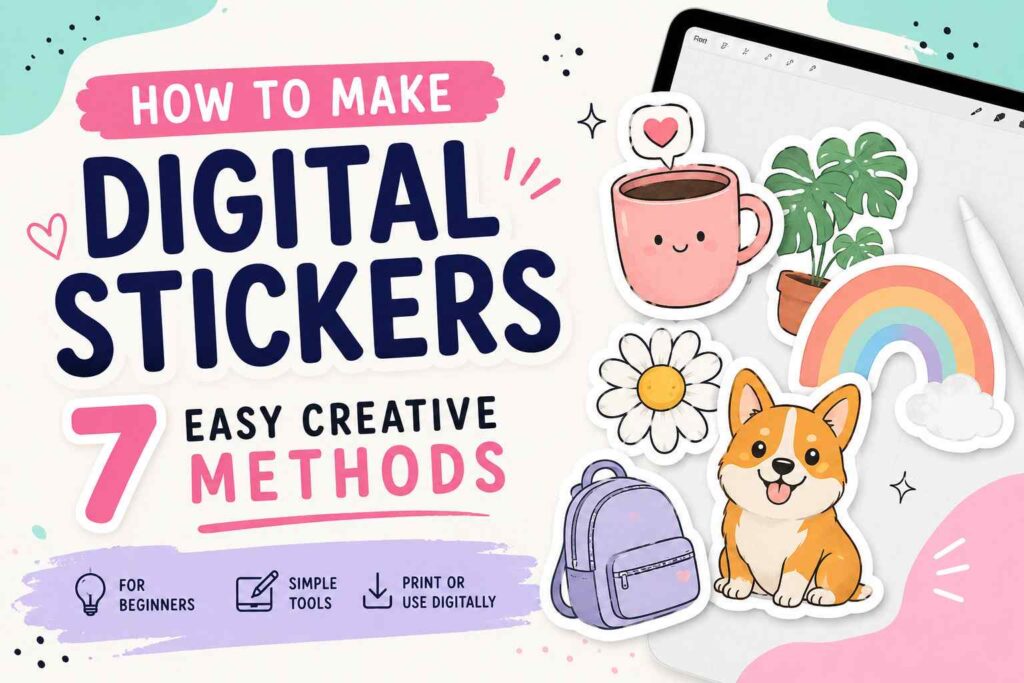
In this complete guide, you will learn step-by-step methods to create digital stickers from scratch. Whether you are a beginner or want to improve your design skills, these techniques will help you create high-quality digital sticker packs.
Essential Tools for Creating Digital Stickers
- Tablet or iPad
- Stylus pen
- Graphic design software
- Drawing app
- High-resolution PNG export settings
Having these tools ready will make your digital sticker creation process smooth and efficient.
How to Make Digital Stickers
Digital stickers are image files, usually in PNG format with transparent backgrounds. The transparency allows them to be placed on any digital surface without a white box around them. To create professional digital stickers, focus on clean lines, vibrant colors, and proper export settings.
Below are seven creative and detailed methods to make digital stickers.
1. Hand-Drawn Tablet Sticker Method
This is the most popular method for creating custom digital stickers.
Step-by-Step Instructions
- Open your drawing app
Choose a canvas size such as 2000 x 2000 pixels for high resolution. - Create a new layer
Always draw on a separate layer to keep your background transparent. - Sketch your design
Start with a light outline to shape your sticker. - Add clean line art
Use a solid brush for clear edges. - Add colors and shading
Fill your design with vibrant colors and soft shadows. - Turn off background layer
Ensure only your sticker artwork is visible. - Export as PNG with transparency
Save at high resolution for best quality.
This method gives you complete creative control over style and detail.
2. Vector-Based Digital Sticker Method
Vector stickers are scalable without losing quality.
Step-by-Step Instructions
- Open vector design software
Create a new artboard. - Use shape tools
Build your sticker using circles, rectangles, and custom paths. - Adjust anchor points
Refine curves and edges for smooth design. - Add colors and gradients
Keep colors balanced and eye-catching. - Add white outline border
This gives a classic sticker appearance. - Remove background
Ensure transparency is active. - Export as PNG or SVG
PNG for general use, SVG for scalable projects.
Vector stickers are perfect for branding and logo-based designs.
3. Photo-Based Digital Sticker Method
Turn photos into fun digital stickers.
Step-by-Step Instructions
- Choose a clear photo
High resolution images work best. - Remove background
Use background removal tool or manual erasing. - Refine edges
Zoom in and clean any rough spots. - Add white border outline
Enhances sticker look. - Adjust brightness and contrast
Improve clarity and sharpness. - Add optional text or effects
Keep design balanced. - Export as transparent PNG
Ensure no background layer remains.
This method is great for personalized sticker packs.
4. Text-Based Digital Sticker Method
Create stylish typography stickers.
Step-by-Step Instructions
- Open new canvas
Use square format for flexibility. - Choose bold font
Readable and attractive fonts work best. - Type your phrase
Keep text short and impactful. - Adjust letter spacing
Improve visual balance. - Add color and shadow
Make text pop. - Add white outline border
Creates sticker effect. - Export as PNG
Maintain transparent background.
Text stickers are popular for planners and social media.
5. Canva or Template-Based Sticker Method
Great for beginners without drawing skills.
Step-by-Step Instructions
- Open design platform
Select custom size canvas. - Choose graphic elements
Search icons, shapes, and illustrations. - Combine elements
Arrange creatively on canvas. - Customize colors
Match your theme. - Add outline border
Use white shape behind design. - Delete background
Make sure canvas is transparent. - Download as PNG
Enable transparent background option.
Templates make digital sticker creation fast and easy.
6. Animated Digital Sticker Method (GIF)
Animated stickers are eye-catching for messaging apps.
Step-by-Step Instructions
- Create multiple frames
Draw slight movement variations. - Separate each frame on new layer
Organize properly. - Adjust frame timing
Set animation speed. - Preview animation
Check smoothness. - Remove background
Ensure transparency. - Export as GIF
Maintain high quality. - Test in messaging app
Confirm animation works properly.
Animated stickers add personality and movement.
7. Digital Planner Sticker Method
Designed specifically for digital note apps.
Step-by-Step Instructions
- Choose planner theme
Decide color palette and style. - Create small icon designs
Keep proportions consistent. - Maintain uniform size
Ensure stickers fit planner layout. - Add subtle shadows
Create layered effect. - Group similar stickers
Organize into categories. - Export each sticker individually
PNG format recommended. - Package into folder
Label clearly for easy use.
Planner stickers are perfect for productivity and organization.
Design Tips for Professional Digital Stickers
Use High Resolution
Minimum 300 DPI for crisp images.
Keep Edges Clean
Smooth outlines improve appearance.
Maintain Color Harmony
Use balanced palettes.
Add White Border
Classic sticker look enhances appeal.
Test on Dark and Light Backgrounds
Ensures visibility in all settings.
File Format Guide
PNG
Best for transparent backgrounds.
SVG
Ideal for scalable vector designs.
GIF
Perfect for animated stickers.
Organizing Your Digital Sticker Pack
Create folders by category such as:
- Emotions
- Planner icons
- Decorative elements
- Quotes
- Seasonal themes
Organized packs improve usability and presentation.
Common Mistakes to Avoid
Forgetting Transparent Background
Results in unwanted white box.
Low Resolution Export
Causes blurry stickers.
Overcrowded Design
Keep stickers simple and clear.
Too Many Colors
Limit palette for professional look.
Creative Digital Sticker Ideas
- Cute cartoon characters
- Study motivation quotes
- Fitness trackers
- Weather icons
- Holiday themes
Frequently Asked Questions
What size should digital stickers be?
A 2000 x 2000 pixel canvas at 300 DPI works well.
Which format is best?
PNG with transparent background is most versatile.
Can beginners make digital stickers?
Yes, template-based tools make it easy.
How do I sell digital stickers?
Export high-quality files and organize into themed packs.
Are digital stickers reusable?
Yes, they can be reused unlimited times.
Final Words
Digital sticker creation is creative, flexible, and rewarding. With the right tools and techniques, you can design beautiful sticker packs for planners, messaging apps, or even online shops.
By practicing these seven methods and focusing on clean design, high resolution, and proper export settings, you can create professional-quality digital stickers that stand out and impress.